LinkedIn Carousels: The Format That Gets the Most Reach
In this article
Carousels are the highest-reach format on LinkedIn in 2026. Here is why.
Not image posts. Not video. Not text posts — though those are a close second. When it comes to consistent, repeatable organic reach on LinkedIn right now, the native PDF carousel beats every other format. The reason is mechanical: carousels generate more dwell time than any other content type, and dwell time is one of the strongest signals LinkedIn’s algorithm weighs when deciding who to show your content to next. This guide covers what carousels are, how to make them, and exactly how to structure them for maximum reach.
What Is a LinkedIn Carousel?
A LinkedIn carousel is a PDF document uploaded directly as a post — LinkedIn renders it as a swipeable, slide-by-slide format in the feed. It is not a link to an external presentation, not a Canva embed, and not a SlideShare. It is a plain PDF attached to a post. Each slide becomes one swipeable card. LinkedIn launched this format in 2019, and it has been the top-reach format for B2B creators ever since.
This is the first thing most people get wrong about LinkedIn carousels. They are not a special content type you enable in settings. They are just PDFs, uploaded to the post composer as a document attachment.
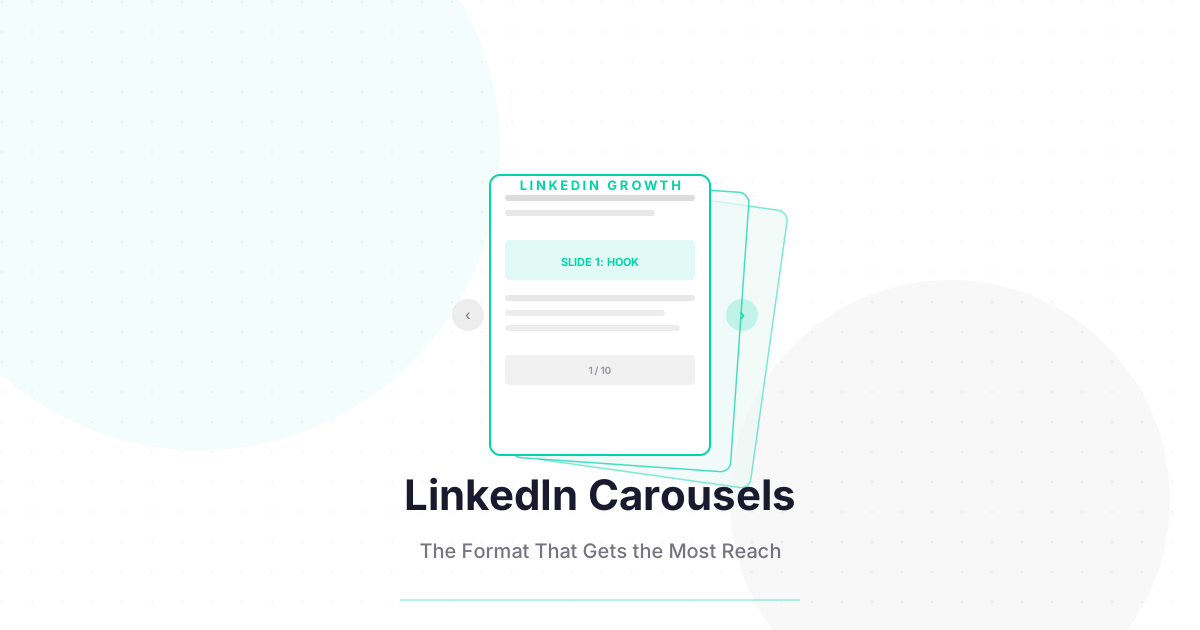
Here is the exact mechanic: when you create a new LinkedIn post, you see an attachment icon at the bottom. Click “Add a document.” Upload a PDF. LinkedIn converts each page of the PDF into a swipeable slide, which it renders in the feed with left/right navigation arrows and a page counter (“1 / 10”). Viewers swipe through the slides without leaving LinkedIn.
That last part is what makes carousels so powerful. Every swipe is an interaction that keeps the viewer on your content, on LinkedIn, contributing to your dwell time score.
Carousel vs. other LinkedIn formats:
| Format | How It Works | Dwell Time | Reach Potential |
|---|---|---|---|
| Native PDF carousel | PDF uploaded as document → swipeable slides | High (each swipe = time) | Highest |
| Short text post | Text only, under 200 words | Low–medium | High |
| Image post | Single image attached to post | Low | Medium |
| Short video (native) | Video uploaded directly, under 90s | Medium–high | High |
| Long-form LinkedIn article | Published at linkedin.com/pulse/ | N/A (not in feed natively) | Low for feed reach |
| External link post | URL in post body | Very low (click exits LinkedIn) | Lowest |
Source: Patterns reflect widely observed creator data from tools like Shield Analytics and Hootsuite. Individual results vary by niche.
The carousel’s reach advantage is not permanent — LinkedIn’s algorithm evolves, and short-form video has been gaining ground since late 2025. But as of 2026, carousels remain the most reliable format for organic reach expansion because they generate sustained time-on-post that text and images cannot match.
Why Do LinkedIn Carousels Get More Reach Than Other Formats?
LinkedIn’s algorithm uses dwell time — how long someone spends on your content — as a quality signal. A viewer who swipes through 10 carousel slides spends 3–5 times longer on your post than someone who reads a text post. That extended engagement tells the algorithm your content is worth distributing to more people. Each swipe is essentially a micro-engagement that compounds without the viewer having to actively like or comment.
The LinkedIn feed ranking system, described in LinkedIn’s Engineering Blog, prioritizes content that creates what they call “meaningful engagement.” Dwell time is a major component of that signal.
Here is the math in practical terms. A text post that takes 20 seconds to read and gets 50 reactions generates one engagement signal per viewer. A 10-slide carousel that takes 60–90 seconds to swipe through generates multiple micro-signals per viewer: each slide view, each swipe, and potentially a reaction or comment at the end. The algorithm interprets this as higher-quality engagement even if the total reaction count is identical.
There is a second reason carousels spread: they are saveable. LinkedIn users save carousels as PDF documents for future reference far more often than they save text posts. The save signal is one of the strongest quality indicators the algorithm uses. A post with a 2% save rate gets distributed to meaningfully more non-followers than a post with a 0.2% save rate.
The dwell time mechanism in plain terms:
- Someone sees your carousel in their feed
- They swipe through the slides (each swipe registers as continued engagement)
- LinkedIn detects the extended time on your post
- This contributes to your post’s quality score in the first 90-minute distribution wave
- Higher quality score = wider second and third wave distribution
The practical implication: a carousel that gets 100 people to swipe all the way through 10 slides will likely outperform a text post with 300 reactions, in terms of total impressions.
How Do You Create a LinkedIn Carousel?
Create your slides in Canva, PowerPoint, or Google Slides, set the dimensions to 1080x1080px (square) or 1920x1080px (landscape), export as a PDF, and upload to LinkedIn as a document attachment. The entire process takes 30–60 minutes once you have a template. Canva is the easiest starting point — it has LinkedIn carousel templates built in.
Here is the step-by-step process:
Step 1: Choose your tool.
- Canva (recommended for beginners): Search “LinkedIn Carousel” in Canva’s template library. Hundreds of pre-built templates. Free tier is sufficient. Export as PDF.
- PowerPoint / Keynote: Set slide dimensions to 1080x1080px under “Slide Size → Custom.” Design slides. Save/export as PDF.
- Google Slides: File → Page Setup → Custom (1080x1080px). Design. File → Download → PDF Document.
Step 2: Design your slides. Each slide should have one clear message. Use large text (minimum 24pt for body copy — people view on mobile). High contrast between text and background. Limit each slide to 30–50 words maximum.
Step 3: Export as PDF. In every tool: File → Export/Download → PDF. Double-check the PDF renders cleanly before uploading — sometimes images compress or fonts render incorrectly.
Step 4: Upload to LinkedIn. In LinkedIn’s post composer: click the attachment icon → “Add a document” → select your PDF → add a post caption (this is the text that appears above the carousel in the feed) → publish.
Step 5: Write a strong caption. The caption above the carousel is its own engagement hook. Many creators write a one-sentence teaser that creates curiosity for slide 1. Others write a short summary of what the carousel covers. The caption should earn the first swipe.
What Is the Optimal Length for a LinkedIn Carousel?
5 to 12 slides is the optimal range for LinkedIn carousels in 2026. Under 5 slides is too short to generate meaningful dwell time. Over 12 slides sees drop-off — most viewers stop swiping around slide 8–10. The sweet spot for most content types is 8–10 slides: long enough to deliver real value and generate dwell time, short enough that motivated viewers reach the CTA slide at the end.
Carousel length depends on content type:
| Content Type | Recommended Slide Count | Reasoning |
|---|---|---|
| Framework or system | 8–10 | One principle per slide, CTA at end |
| Step-by-step guide | 6–10 | One step per slide |
| Data insights / stats | 6–8 | One data point per slide with context |
| List (tips, tools, mistakes) | 7–12 | One list item per slide |
| Mini case study | 5–7 | Problem, approach, result, lesson, CTA |
| Comparison / versus | 6–8 | One dimension per slide |
The most common carousel mistake is cramming too much information per slide. If you find yourself writing more than 50 words on a slide, split it into two slides. Dense slides get skipped, which kills your dwell time and defeats the entire purpose of the format.
What Is the Anatomy of a High-Performing LinkedIn Carousel?
Every carousel that consistently gets strong reach follows the same structure: slide 1 is a hook and promise, slides 2 through N deliver specific value (one idea per slide), and the final slide is a clear CTA. The hook slide is the most important — it is what determines whether someone swipes or scrolls past. Spend 30% of your design time on slide 1.
Here is the breakdown slide by slide:
Slide 1 (Hook + Promise). This is your headline. It should make a specific promise or create curiosity. Examples:
- “7 LinkedIn mistakes costing you followers (and how to fix them)”
- “The posting framework I used to go from 500 to 8,000 followers in 4 months”
- “Why your LinkedIn posts stop getting reach after week 2 (and what to do about it)” Include your brand name or logo in a corner. Keep the design simple — the hook text should dominate.
Slides 2–N (Value delivery). One idea per slide. The structure of each middle slide: a clear statement, one supporting sentence or data point, and if relevant, a small visual (icon, chart, example). No walls of text. Assume the viewer is on a phone and has 3 seconds per slide.
Final slide (CTA). Tell the viewer what to do next. Options:
- Follow you for more content like this
- Subscribe to your LinkedIn Newsletter
- Download a related resource (link in first comment)
- Visit your profile for more
The CTA slide should look different from the value slides — distinct background color or layout — so it is visually clear that the carousel has ended and an action is being invited.
Want the full breakdown of which signals drive LinkedIn reach? The free Algorithm Decoder covers dwell time, saves, shares, and five more signals. Free.
What Topics Work Best as LinkedIn Carousels?
The 4 topic types that consistently perform well as carousels: numbered lists (“7 mistakes”), step-by-step guides (“How to do X in 5 steps”), data-backed insights (“What I learned from 90 days of LinkedIn data”), and visual frameworks (“The 2x2 matrix I use to prioritize content”). All four follow the same structural logic: one discrete idea per slide, building toward a single conclusion.
Topics that perform poorly as carousels: opinion pieces (better as text posts), narrative stories (better as text posts), and anything that requires dense reading. Carousels work when the content can be broken into discrete, self-contained units. If your ideas flow into each other and require context from the previous slide to make sense, the format is fighting your content.
The highest-performing carousel topics on LinkedIn by engagement type:
- Professional mistakes / lessons learned: High save rate (“saving this for when I need it”)
- Industry data and statistics: High share rate (“sharing this with my team”)
- Step-by-step processes: High follow rate (“following for more like this”)
- Tools and resources: High save + comment rate
- Contrarian takes with evidence: High comment rate (“I disagree, here’s why”)
What Are the Most Common LinkedIn Carousel Mistakes?
Five mistakes kill carousel performance more than anything else: too much text per slide (viewers stop swiping), no hook on slide 1 (no one clicks in), no CTA on the final slide (reach with no conversion), no brand consistency across slides (looks amateurish), and uploading a low-resolution PDF (text becomes unreadable on mobile). Fix these five and your carousels will outperform most of what is on LinkedIn.
Too much text per slide. If your slide needs a scroll to read, it is already wrong. Target 20–50 words per slide. Use bullet points. Use large font sizes. Ruthlessly cut.
Weak slide 1. The hook slide determines your swipe-through rate. A generic “5 tips for LinkedIn growth” hook generates less curiosity than “The LinkedIn mistake I see 90% of creators making (including me until recently).” Be specific. Make a promise or a provocation.
No CTA at the end. A carousel without a CTA is a reach opportunity with no conversion mechanism. Even if your CTA is just “Follow for more content like this,” include it. The final slide is prime real estate.
No brand consistency. If each slide uses a different font, color scheme, or layout, the carousel looks like it was assembled in a hurry. Use a template. Your slides should look like they belong together.
Poor mobile optimization. Most LinkedIn users view carousels on their phones. Text that looks fine on a desktop screen can be unreadably small on mobile. Test your PDF on a phone before publishing. Minimum 24pt body font. High contrast. No tiny fine print.
For more on LinkedIn content formats and which ones to prioritize in your strategy, see the LinkedIn Content Strategy guide.
Frequently Asked Questions
Do LinkedIn carousels work in 2026? Yes. As of 2026, native PDF carousels remain the highest-reach format on LinkedIn for most content types. LinkedIn has been pushing video harder since late 2025, and short-form video is gaining ground, but carousels still outperform text posts and image posts in impressions per post for creators who make them consistently. The dwell-time advantage is structural, not trend-dependent.
What size should a LinkedIn carousel be? 1080x1080px (square) is the most common and works well on all devices. 1920x1080px (landscape) is also supported but displays smaller in the mobile feed. Some creators use 1080x1350px (portrait) for a taller mobile-first format. Square is the safest choice if you are starting out.
How many slides should a LinkedIn carousel have? 8–10 slides is the optimal range for most content. This is long enough to generate meaningful dwell time (which drives reach) and short enough that viewers reach the final CTA slide. Under 5 slides generates too little dwell time. Over 12 slides sees viewer drop-off that reduces your average slide completion rate.
Can you edit a LinkedIn carousel after posting? No. Once a LinkedIn post is published with a document (carousel) attached, you cannot replace the document. You can edit the caption text above the carousel, but not the carousel itself. If you find an error in your slides, your options are to post a corrected version as a new post or add a correction note in the comments.
Are LinkedIn carousels the same as LinkedIn documents? Yes. LinkedIn uses “document” in its interface (the attachment type you select) and the community uses “carousel” to describe the swipeable format that results. They are the same thing. When you see a creator refer to a “LinkedIn carousel,” they mean a PDF document uploaded as a post attachment.
Keep Reading
- LinkedIn Content Strategy: What Actually Gets Reach in 2026 — where carousels fit into your full content calendar
- Best Time to Post on LinkedIn in 2026 — how timing interacts with your carousel reach
- How to Grow LinkedIn Followers Without Being Cringe — the format and algorithm guide for follower growth
What to Do Next
Choose the path that fits where you are right now.
Pick Your Niche
Download the free Instagram Algorithm Decoder. See the 6 signals Instagram uses to rank your content, their approximate weights, and a self-audit to score your last 10 posts.
Download FreeStart Building
Read the step-by-step setup guide for your platform.
Get Weekly Tactics
One tip, one tool, one case study. Every Tuesday.
Free. No spam. Unsubscribe anytime.